Week 2 Lab Report
Chester James Ramos
Reposititory
How to log into ieng6:
Downloading Visual Studio
- Download Visual Studio (Link) based on your computer system (windows, mac, etc.)
- CLick the downloaded file and install
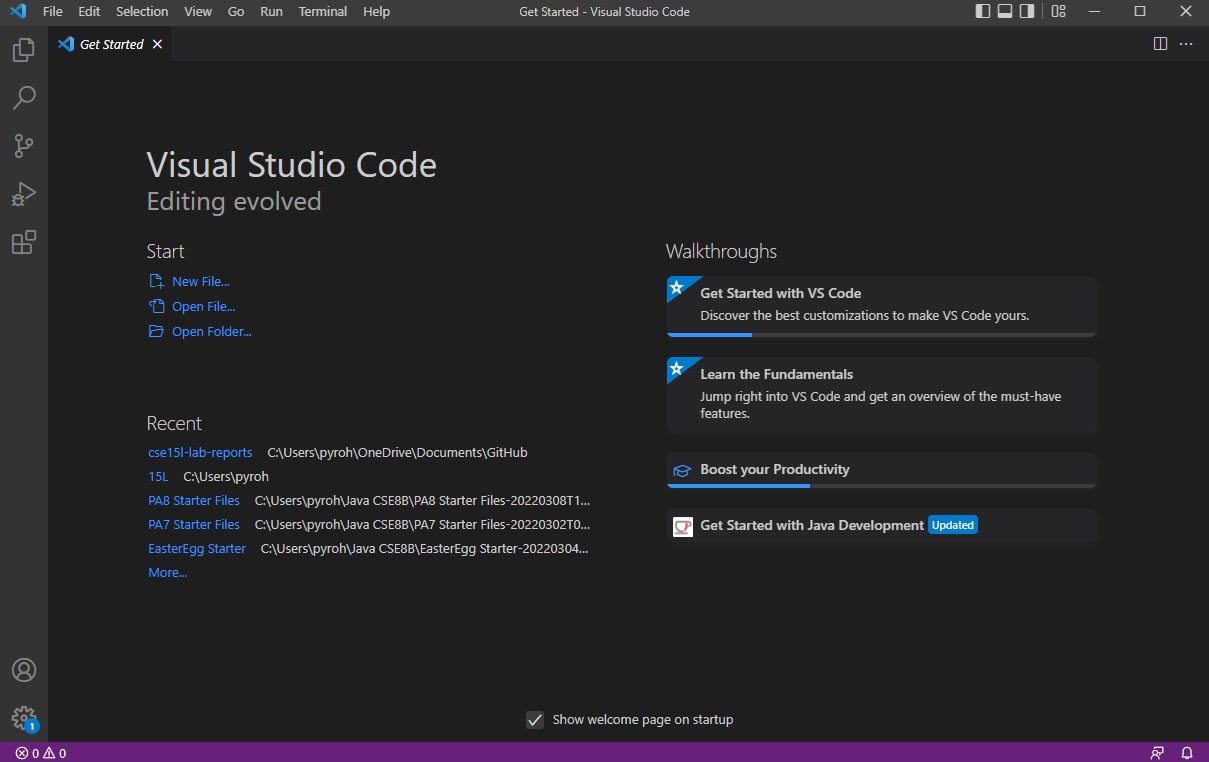
- Once downloaded your default screen should look like this
Remote Connecting
- For Windows Users only
- Follow these steps to check if you have or install OpenSSH
- Now on Visual Studio you can click on “Terminal” on the top bar and then “New Terminal”
- Your terminal should pop up on Visual Studio in the bottom middle-right area
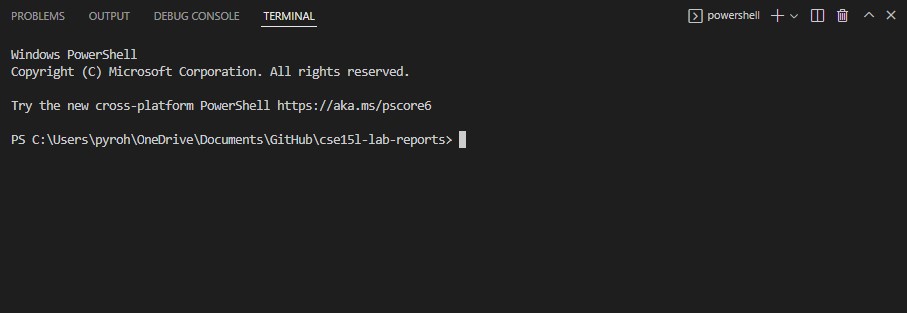
- Your terminal should pop up on Visual Studio in the bottom middle-right area
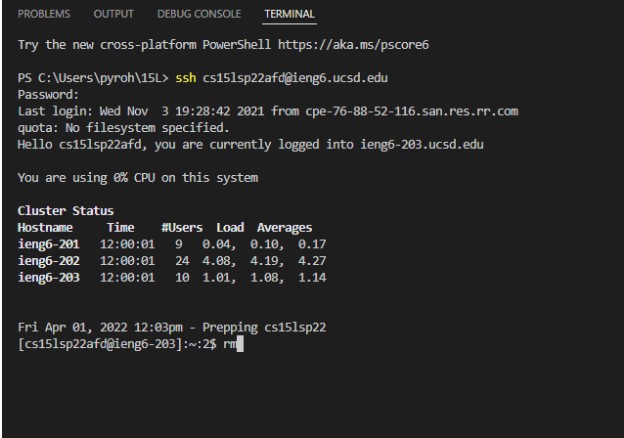
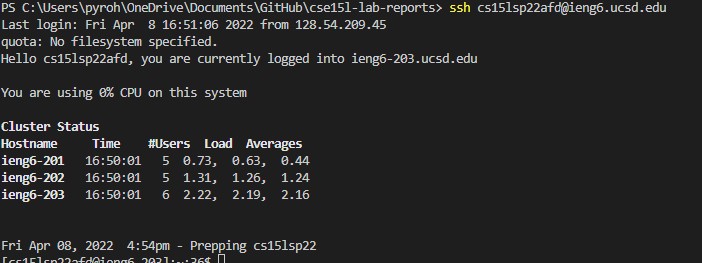
- After that type
ssh cs15lsp22zz@ieng6.ucsd.edu
into the terminal, but instead of zz it should be your own 3 letters and type in your password (it will be blank) and select yes if it’s your first time logging in
Trying Some Commands
-
Try some of these commands in the ieng6 computer on your terminal
cd ~cdls -latls -als (directory) where (directory) is /home/linux/ieng6/cs15lsp22/cs15lsp22abc, where the abc is one of the other group members’ usernamecp /home/linux/ieng6/cs15lsp22/public/hello.txt ~/cat /home/linux/ieng6/cs15lsp22/public/hello.txt
-
Using
ls -lat
example in terminal gives me something like this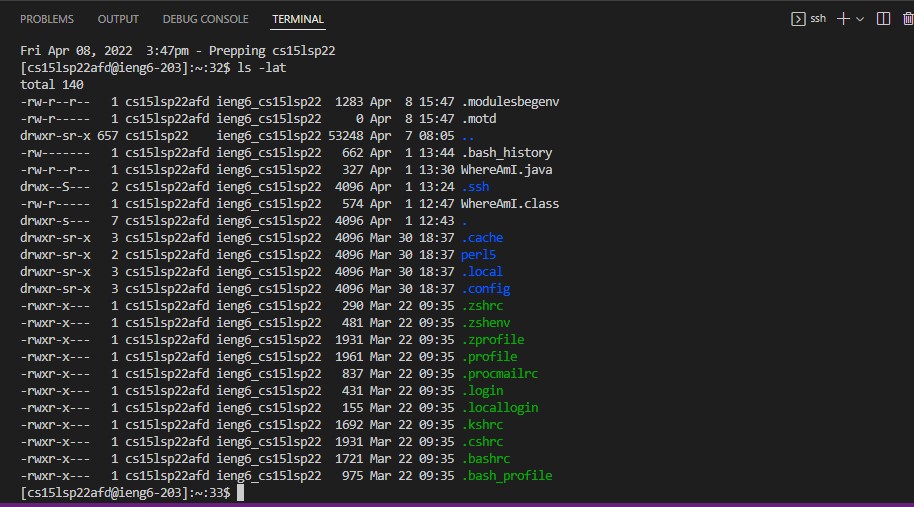
Moving Files Into scp
-
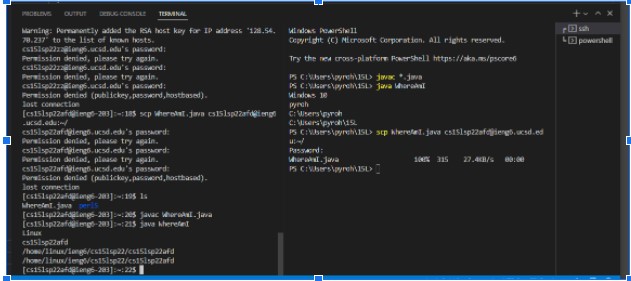
Once you have a file ready or created, click terminal on the top bar again and make a split terminal (This will keep the ieng6 terminal we used and make a new one directed only on your personal computer)
-
After you can run
scp *filename.filetype* cs15lsp22zz@ucsd.edu~/
and login again -
To check you can use the original terminal we logged into ieng6 with and use the command
ls. If it is a java file you can javac and java on the ieng6 since it has it’s own version of java installed
Setting Up A SSH Key
-
If your on windows follow these steps on this website up to the fourth image
-
Now that you have a key for windows, you do not have to do
ssh-keygen -t ed25519
and instead just do the
scp /Users/<user-name>/.ssh/id_rsa.pub cs15lsp22zz@ieng6.ucsd.edu:~/.ssh/authorized_keys
Where user-name is your personal computer user name (not ucsd), id_rsa.pub will be in where it says “Your public key has been saved” after “/.ssh”, and replacing your personal letter for zz
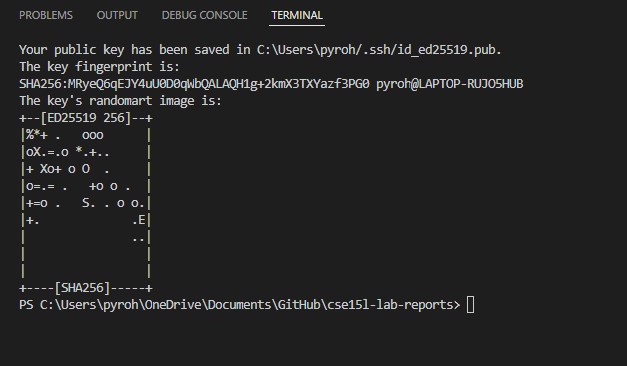
-Once done and logged in you can not ssh into the server without a password at all times (unless you create a new key)
Optimizing Remote Running
-
For optimizing remote running we can do login and check the current directory in the ieng computer
ssh cs15lsp22zz@ieng6.ucsd.edu "ls"
Replace zzz with personal letters -
We can also put a bunch of commands together in the same line by using semi-colons. In this example we can copy a file to the computer, compile it and run it
cp WhereAmI.java OtherMain.java; javac OtherMain.java; java WhereAmI

- Now to do that multiple times we can use the up arrow key to reuse the previous terminal line we used